Image tools › Mirror glare
◇ Photo Tool

Remove Mirror Glare from Photos

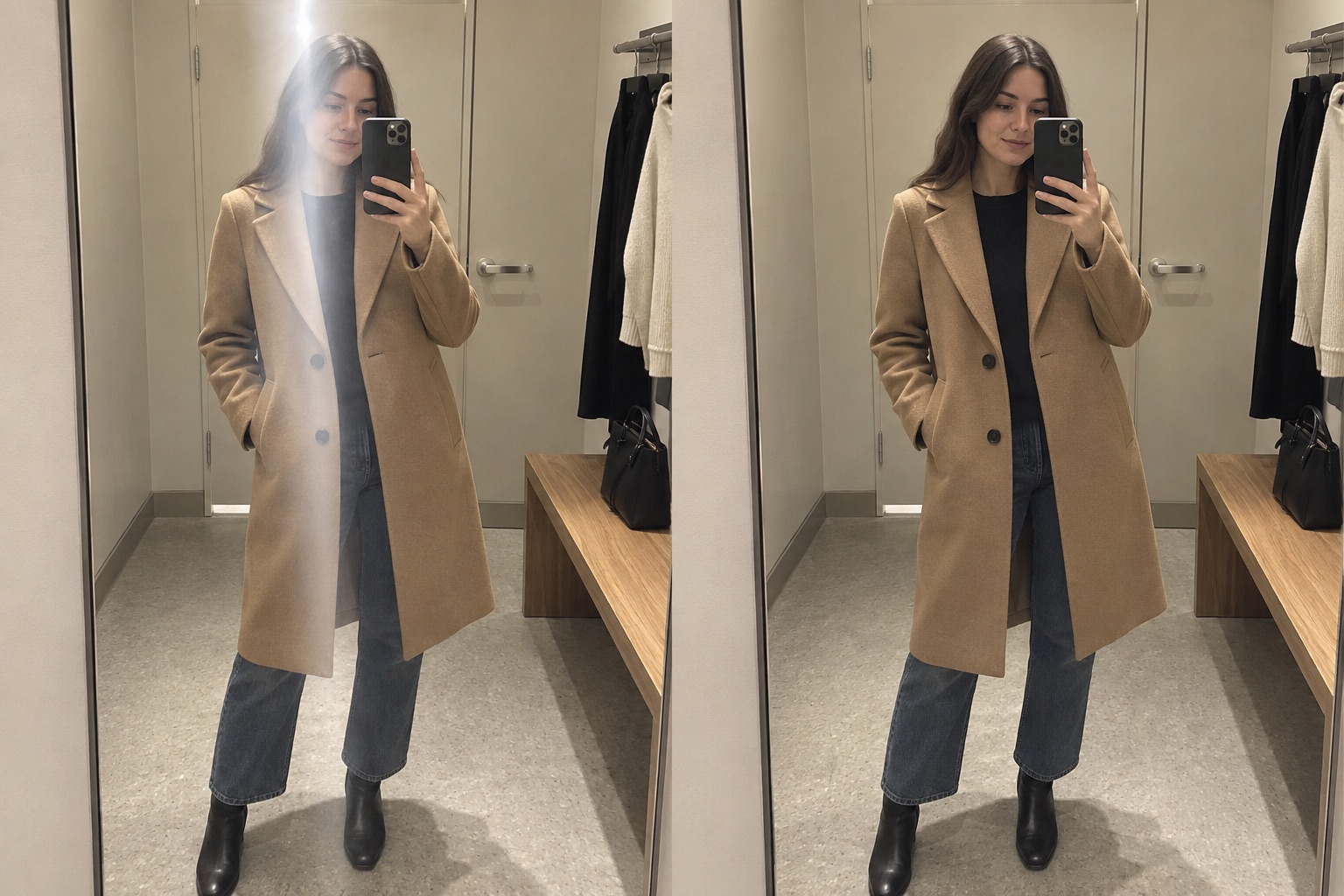
Remove mirror glare by softening bright reflections and haze on mirrors or polished surfaces. Use Brush for a small hotspot or Clone when nearby clean mirror texture is available.

After glare removal
Before glare removal
BeforeAfter
⇧

Or drop an image here · JPG, PNG or WebP up to 15 MB

Your photos stay yours. Remove Glare From Photo does not save uploaded photos on its server or publish them. AI editing sends your selected photo to an image-processing provider. Read our photo privacy details ↗

↔

How do you remove mirror glare?

Start with Auto for broad highlights, use Brush for a precise area, or Clone a small blocked patch. You can preview a selected photo before signing in.

  1. 1

    Open a photo

    Select your image or try the example photo, then preview it before signing in.

  2. 2

    Make your adjustments

    Choose a credit pack for the photos you want to edit.

  3. 3

    Compare and save

    Review your photo, compare the result, and save the version you like.

Choose an editing method
MethodBest forWhat it changes
AutoBroad, bright glareReduces the strongest highlights across the image.
BrushOne precise areaApplies the selected correction only where you paint.
CloneA small blocked patchCopies nearby clean texture over the selected area.

What do mirror glare results look like?

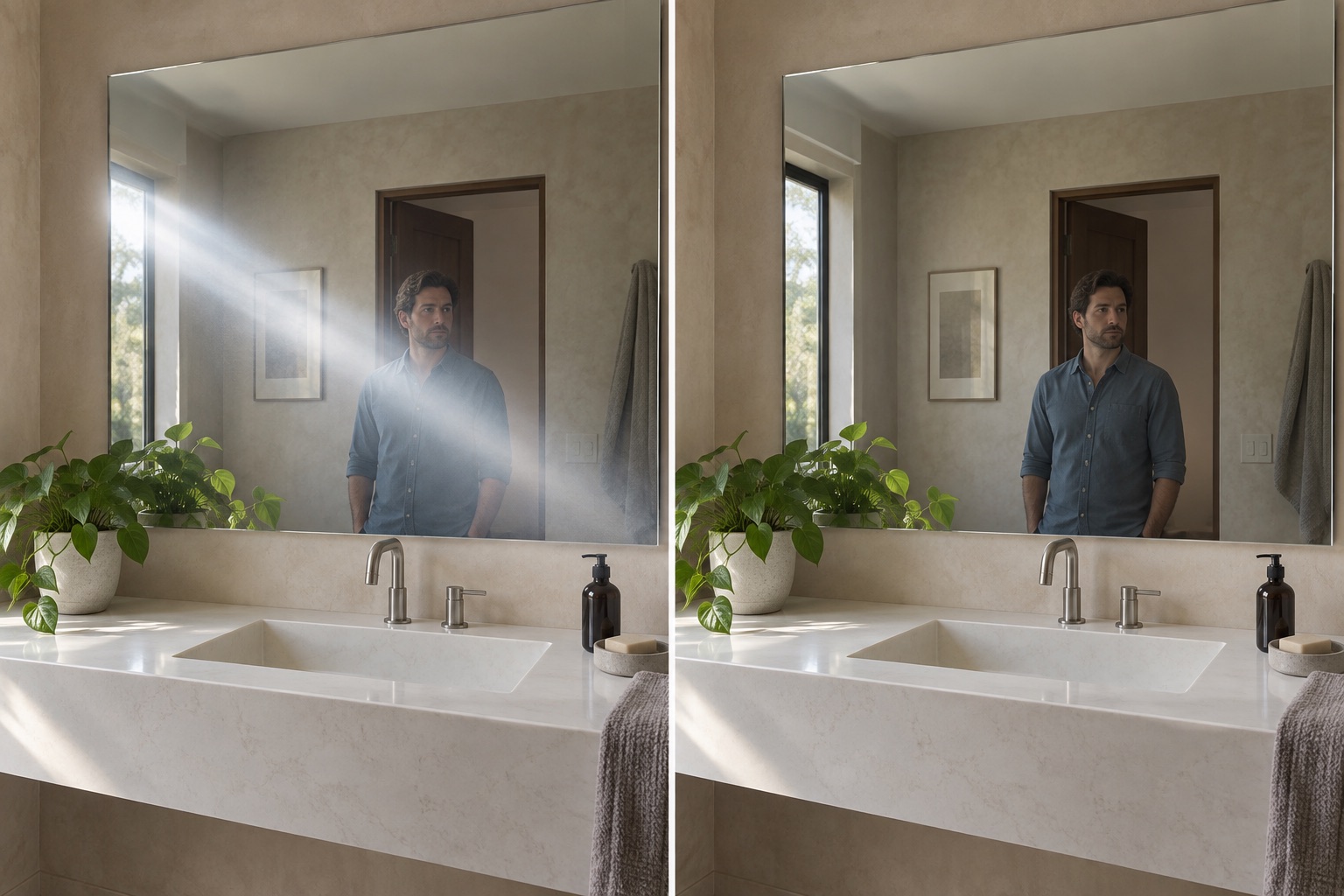
These mirror glare examples explain how to reduce mirror reflections without changing the person, room, or reflected perspective.

Mirror glare before correction
Mirror glare after correction
BeforeAfter
What changes

Remove haze from the mirror, not the whole room

An unwanted white reflection can wash across a mirror and hide the person or objects behind it. Clear that veil in the affected area while retaining the mirror edges and the original room lighting.

Keep the face, pose and reflected geometry consistent before and after.

Edit mirror glare
Mirror glare before correction
Mirror glare after correction
BeforeAfter
Natural-looking detail

Restore a believable reflection

A mirror image needs matching perspective and texture. Removing glare is more than making the photo darker: the distracting patch should disappear while the reflected scene still feels natural.

Compare the reflected edges and fine details before you save.

Try a mirror photo

Questions about mirror glare

  • 3 editing methods:  Auto, Brush, and Clone
  • 3 accepted upload formats:  JPG, PNG, and WebP
  • 15 MB:  maximum upload size
  • 1600 × 1200 pixels:  maximum editing and export workspace
How do I remove mirror glare without changing the reflection?

Correct only the bright mirror glare and keep the mirror edges, perspective, and surrounding light consistent. A single photo cannot recover details completely hidden behind a strong reflection.

Does my photo upload to a server?

Choosing a photo for preview keeps it in your browser. Remove Glare From Photo does not save uploaded photos on its server. AI editing sends your selected photo to an image-processing provider.

Which file types can I save?

Download the result as a PNG or JPG, at full edited size or half size. Large uploads are resized to a maximum of 1600 × 1200 pixels.

Content by Remove Glare From Photo.